
Shawn Freeman
CEO

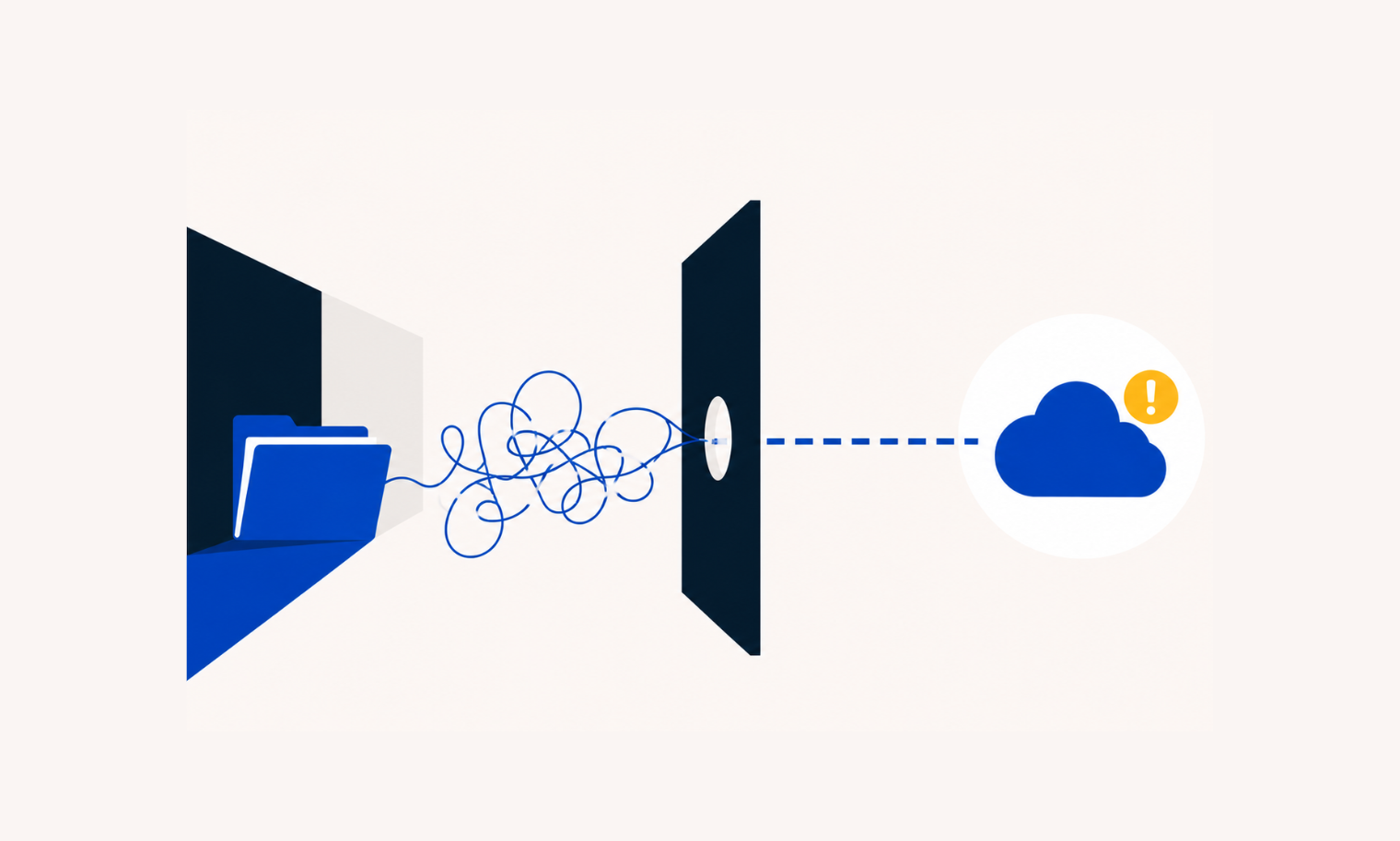
You drag a folder into OneDrive, wait for the sync icon to settle, and then get an error. The file didn't upload. No clear explanation, just a small red X and a vague message about the file path being too long. You rename the file, try again — same result. You move the folder, try again — same result. Eventually you give up and leave the file sitting on a local drive where nobody else can access it.
This is one of the most common and most misunderstood sync problems in Windows environments. It affects OneDrive, SharePoint, Dropbox, Google Drive, Egnyte, and virtually every other cloud storage and sync platform used in Canadian businesses today. The root cause is not a bug in any of these services. It is a decades-old limit built into the Windows operating system itself.
Understanding where the limit comes from, how it applies to each platform, and what you can do about it will save your team real time and prevent files from quietly falling through the cracks.
Windows has a built-in restriction called MAX_PATH that limits the total length of any file path — including the drive letter, every folder name, all the backslashes between them, and the file name itself — to 260 characters. This limit dates back to the early days of Windows NT and was designed around hardware and filesystem constraints that no longer exist. Microsoft documents this directly in their Win32 developer reference: learn.microsoft.com/en-us/windows/win32/fileio/maximum-file-path-limitation
A typical file path looks like this: C:\Users\FirstName\Documents\Client Projects\2024\Q3\Proposals\Final Versions\Approved\Submission Ready\Final-Proposal-v3-APPROVED-FINAL.docx — count the characters in that path and you may already be past 200. Add a few more nested folders, or a department name with spaces, and you hit the wall.
💡 The 260-character limit counts everything: the drive letter and colon (2), every backslash (1 each), every folder name, and the full file name including extension. Spaces count. Underscores count. Everything counts.
When you sync files to OneDrive or any other cloud storage platform, the sync client running on your Windows computer must create a local copy of the file at a path on your hard drive. If that local path exceeds 260 characters, Windows refuses to create the file — and the sync fails. The cloud service reports an error, but the actual cause is Windows rejecting the path, not the cloud service rejecting the file.
⚠️ This is why renaming just the file rarely fixes the problem. If the folder structure is already consuming 220+ characters, even a short file name will push the total over the limit.
On top of the Windows path restriction, OneDrive and SharePoint impose their own character limits that are separate from — and sometimes stricter than — the Windows ceiling. Understanding both layers matters, because hitting one does not mean you have cleared the other.
Microsoft's own support documentation confirms the 400-character ceiling directly: "The entire decoded file path, including the file name, can't contain more than 400 characters for OneDrive for home, OneDrive for work or school and SharePoint in Microsoft 365." (Source: Microsoft Support, support.microsoft.com/en-us/office/restrictions-and-limitations-in-onedrive-and-sharepoint).
The University of Connecticut's IT Knowledge Base also documents this layered limit problem, noting that it interacts with the Windows 260-character local path restriction to create sync failures that appear inconsistent and hard to diagnose. (Source: UConn IKB, kb.uconn.edu/space/IKB/26044727448). Microsoft's SharePoint service limits page separately confirms the 400-character ceiling applies across SharePoint and OneDrive. (Source: Microsoft Learn, learn.microsoft.com/en-us/office365/servicedescriptions/sharepoint-online-service-description/sharepoint-online-limits)
🚨 Files that fail to sync due to path length do not always generate visible warnings. In some cases, OneDrive silently skips the file. If staff do not check the sync status regularly, those files may be missing from shared folders without anyone realizing it.
Because the root cause lives inside Windows — specifically in the Windows file system layer and the Explorer shell — every cloud storage platform that syncs files to a local folder on a Windows machine is subject to the same ceiling. This includes services that market themselves as fully cross-platform and enterprise-grade.
The common thread across all of these platforms is the Windows shell. When a sync client places a file on the local hard drive, Windows Explorer (explorer.exe) handles that write operation. Explorer enforces the MAX_PATH limit at the operating system level, and no sync client can override it without a configuration change at the Windows level. Independent Windows administration resources corroborate this: "File Explorer and many Win32 apps cannot handle file paths longer than 260 characters." (Source: woshub.com/max-path-length-limit-windows)
💡 Switching from OneDrive to Dropbox, or from Dropbox to Google Drive, will not solve this problem if the underlying folder structure has paths longer than 260 characters. The platform changes; the Windows limit does not.
In practice, most individual file names are well under 255 characters. The problem almost always comes from folder depth — the number of nested folders between the drive root and the file itself. In a typical Windows environment, the OneDrive sync folder sits inside the user's profile path, which already consumes significant characters before your first custom folder appears.
A standard OneDrive for Business sync root looks like: C:\Users\[Username]\[CompanyName]\[SharePointSiteName]\ — that prefix alone can consume 60 to 90 characters before you have created a single project folder. If your company then organizes files into structures like Clients > Client Name > Year > Project Name > Phase > Deliverables > Final > Approved, you are adding another 80 to 120 characters just in folder names. A file with a descriptive name then tips the total over 260.
⚠️ The problem is particularly acute in professional services firms — accounting, legal, architecture, engineering — where deep, descriptive folder hierarchies are standard practice and files are often named with version numbers, dates, and client identifiers.
Organizations that have been operating with deep folder structures for years often discover the path limit only when they migrate to cloud storage. Files that synced fine on a local file server (where the path started at a short UNC address) now fail because the OneDrive local path is longer than the original server path.
Microsoft recognized that the 260-character MAX_PATH limit was becoming a significant barrier and introduced a way to remove it in Windows 10 version 1607 and later. The fix requires two changes: enabling the long path support policy in Windows (via Group Policy or a registry key), and using applications that are compiled to take advantage of long paths.
The Group Policy setting lives at: Computer Configuration > Administrative Templates > System > Filesystem > Enable Win32 long paths. Setting this to Enabled removes the 260-character ceiling for applications that support it. The equivalent registry change sets HKLM\SYSTEM\CurrentControlSet\Control\FileSystem\LongPathsEnabled to 1.
📋 This is a system-wide change that must be applied to every Windows device in your organization. It cannot be set on a per-user basis. In a managed environment, Always Beyond deploys this through Intune or Group Policy as part of a broader OneDrive configuration baseline.
Enabling long paths in Windows only helps if the application accessing the file also supports long paths. Microsoft 365 applications (Word, Excel, PowerPoint, Outlook) do support long paths in current versions. The OneDrive sync client supports long paths. However, many older or third-party applications still use the legacy Windows API calls that enforce the 260-character ceiling, regardless of the policy setting.
⚠️ If staff use older software — legacy accounting packages, older document management systems, or custom-built tools — those applications may still fail to open or save files with long paths even after you enable the Windows policy. Testing before a broad rollout matters.
Here is the part that surprises most people: Windows Explorer itself — the file browser your staff use every day to navigate folders, drag files, and rename documents — does not fully honour the long path setting. Explorer (explorer.exe) is a legacy shell component that was never updated to opt in to the long path API. This is documented behaviour, not a bug that Microsoft has committed to fixing. A Microsoft Q&A thread confirms explicitly: "Explorer does not support long paths (>260 characters) regardless of the LongPathsEnabled setting, even in Windows 11." (Source: Microsoft Q&A, learn.microsoft.com/en-us/answers/questions/3943637/how-to-extend-file-path-characters-maximum-limit-m)
What this means in practice is a split experience that can be genuinely confusing for staff. The OneDrive sync engine runs as a background process and does support long paths after the fix is applied, so files with paths between 260 and 400 characters will sync to and from the cloud correctly. But when a staff member opens the same folder in File Explorer and tries to interact with those files directly, they can hit a wall.
🚨 The Explorer limitation creates a deceptive user experience: a file syncs successfully to OneDrive and appears in the folder, but a staff member cannot copy, move, or rename it through File Explorer without hitting errors. This looks like a OneDrive bug. It is not — it is Explorer's legacy shell enforcing the old limit even when the policy says otherwise.
The practical conclusion is that the long path Group Policy fix is necessary but not sufficient on its own. It solves the sync layer and the Office app layer. It does not solve the day-to-day file management layer that most staff rely on. The only complete solution is a folder structure where the total path length stays below 260 characters — which means the flattening and naming convention work in Steps 1 and 2 is not optional. It is the actual fix. The long path policy is a safety net for edge cases, not a replacement for good structure.
✅ As a working rule: keep every file path under 200 characters after accounting for the OneDrive sync root prefix. This leaves 60 characters of buffer below the Explorer ceiling, accommodates the longest typical user profile paths, and keeps you well clear of both the 260-character Windows limit and the 400-character OneDrive URL limit.
Even after resolving the Windows path limit, OneDrive and SharePoint impose additional restrictions on file and folder names that can cause sync failures. These are worth knowing because they catch organizations that have cleaned up their path lengths but still see errors.
Resolving file path issues in an existing environment takes a combination of a Windows-level policy change, a review and restructuring of your folder hierarchy, and an ongoing naming convention that prevents the problem from coming back. Here is how to approach it.
Before making any changes, identify which files and folders are currently over the limit. Microsoft provides a SharePoint Migration Assessment Tool (SMAT) that scans your file share or SharePoint library and reports path length violations. For local file servers, a simple PowerShell script can enumerate all paths and flag anything over 200 characters (leaving buffer room for the OneDrive prefix).
The most effective long-term fix is to reduce folder depth. A structure deeper than five or six levels is almost always driven by habit or legacy convention rather than a genuine organizational need. Common restructuring approaches include collapsing year and quarter subfolders into flat date prefixes in the file name, consolidating phase or status subfolders (Draft, Review, Final, Approved) into a single version-numbered file name, and removing redundant parent folders that simply repeat the name of the client or project already in the path above.
✅ Adopt a naming convention for new files and folders that keeps individual names under 50 characters and total path depth under five levels. Document this convention and make it part of onboarding for new staff.
Deploy the Windows long path Group Policy setting to all managed devices. In an Intune-managed environment, this is done through a Configuration Profile using the Settings Catalog (Administrative Templates > System > Filesystem > Enable Win32 long paths). For on-premise Group Policy, apply the setting at the domain level via Computer Configuration. The registry equivalent sets HKLM\SYSTEM\CurrentControlSet\Control\FileSystem\LongPathsEnabled to 1. Microsoft's developer documentation covers both methods in detail. (Source: Microsoft Learn, learn.microsoft.com/en-us/windows/win32/fileio/maximum-file-path-limitation)
⚠️ This policy fixes the OneDrive sync engine and Microsoft 365 applications — but Windows Explorer (File Explorer) does not fully honour it. Staff may still be unable to drag, copy, rename, or move long-path files through the file browser even after the policy is applied. See 'The Explorer Exception' section above for the full breakdown. This is why flattening the folder structure in Step 2 is the more important fix — the policy is a safety net, not a complete solution.
📋 Always Beyond configures the long path policy as a standard component of the OneDrive deployment baseline for managed clients. If you are rolling this out for the first time, Always Beyond can scope and deploy the Intune configuration profile, validate it against your existing folder structure, and test with your critical line-of-business applications before a full rollout.
After enabling long path support, test every application your staff uses to open files from OneDrive or SharePoint. Microsoft 365 apps, modern PDF readers, and most current software will handle long paths correctly. Older software may still fail. Identify any incompatible applications and plan either an upgrade or a workaround (such as keeping files for that specific application in a shorter path).
A one-time cleanup is not enough if naming habits and folder structures revert over time. OneDrive admin reports in the Microsoft 365 admin centre show sync errors by user, which can be reviewed monthly. Setting a file naming policy in SharePoint (available in SharePoint Online settings) can enforce character limits at the point of upload. Periodic audits — quarterly or annually — catch drift before it becomes a migration project.
OneDrive is reporting the total path length, not just the file name. The full path includes the drive letter, your Windows user profile folder, the OneDrive folder name, the SharePoint site name, and every folder between the root and the file. Even a short file name like report.xlsx can have a total path well over 260 characters if the folder structure above it is deep.
No. Both Dropbox and Google Drive use a local sync folder on your Windows computer, and that sync folder is subject to the same Windows 260-character MAX_PATH limit. The error message will look different, but the underlying cause and the fix are identical. The only platforms immune to this problem are web-only tools where files are never written to the local Windows file system.
These are two separate ceilings that both apply. The Windows 260-character limit applies to the file's local path on your hard drive — the path that Windows Explorer sees. The OneDrive 400-character limit applies to the file's URL path in SharePoint — the address used to access the file through a web browser. You can hit either limit independently, depending on how your OneDrive sync folder is structured and where the SharePoint site lives in the URL hierarchy.
Partially — and the exception matters more than the fix. The Group Policy setting removes the Windows-level restriction for the OneDrive sync engine and for Microsoft 365 applications you open directly via File > Open. Files with paths between 260 and 400 characters will sync to and from the cloud correctly once the change is applied.
However, Windows Explorer — the file browser your staff use every day — does not honour the setting, even in Windows 11. This is documented Microsoft behaviour with no scheduled fix. Staff cannot drag, drop, copy, paste, rename, or create folders through File Explorer once the path exceeds 260 characters, regardless of whether the policy is enabled. Since most people navigate and open files through Explorer, the practical impact of the fix is narrower than it first appears.
🚨 The long path policy is a useful safety net for background sync and direct Office app access. It is not a substitute for keeping your folder structure under 260 characters. If your paths are already over the limit, the only complete fix is restructuring them. Relying on the policy alone will leave your staff hitting Explorer errors on the same files that sync successfully in the background — which is arguably more confusing than the original problem.
The Group Policy or Intune Configuration Profile change is straightforward for a managed IT environment, but it needs to be deployed to every Windows device — not just applied manually on one machine. If your organization uses Intune or a domain-joined Group Policy, your IT provider can deploy it centrally. Doing it manually device by device is impractical in any organization with more than a handful of computers. The folder restructuring work is the more time-intensive task, and depends on how long the current structure has been in place.
Yes. OneDrive and SharePoint will not sync files or folders with names containing any of these characters: " * : < > ? / \ | as well as # and % in SharePoint library URLs. Files with names ending in a space or period, or using reserved Windows device names like CON, NUL, or PRN, will also fail. A sync error that references the file name rather than the path length is usually a character violation rather than a length problem.
Files falling through the cracks because of sync errors? Always Beyond can audit your OneDrive and SharePoint environment, deploy the Windows long path policy across your managed devices, and restructure your folder hierarchy so sync errors stop recurring. Reach out to start the conversation.
See exactly how your current IT setup measures up to our Hack Free standards. Enter your business email to receive:
