
Shawn Freeman
CEO

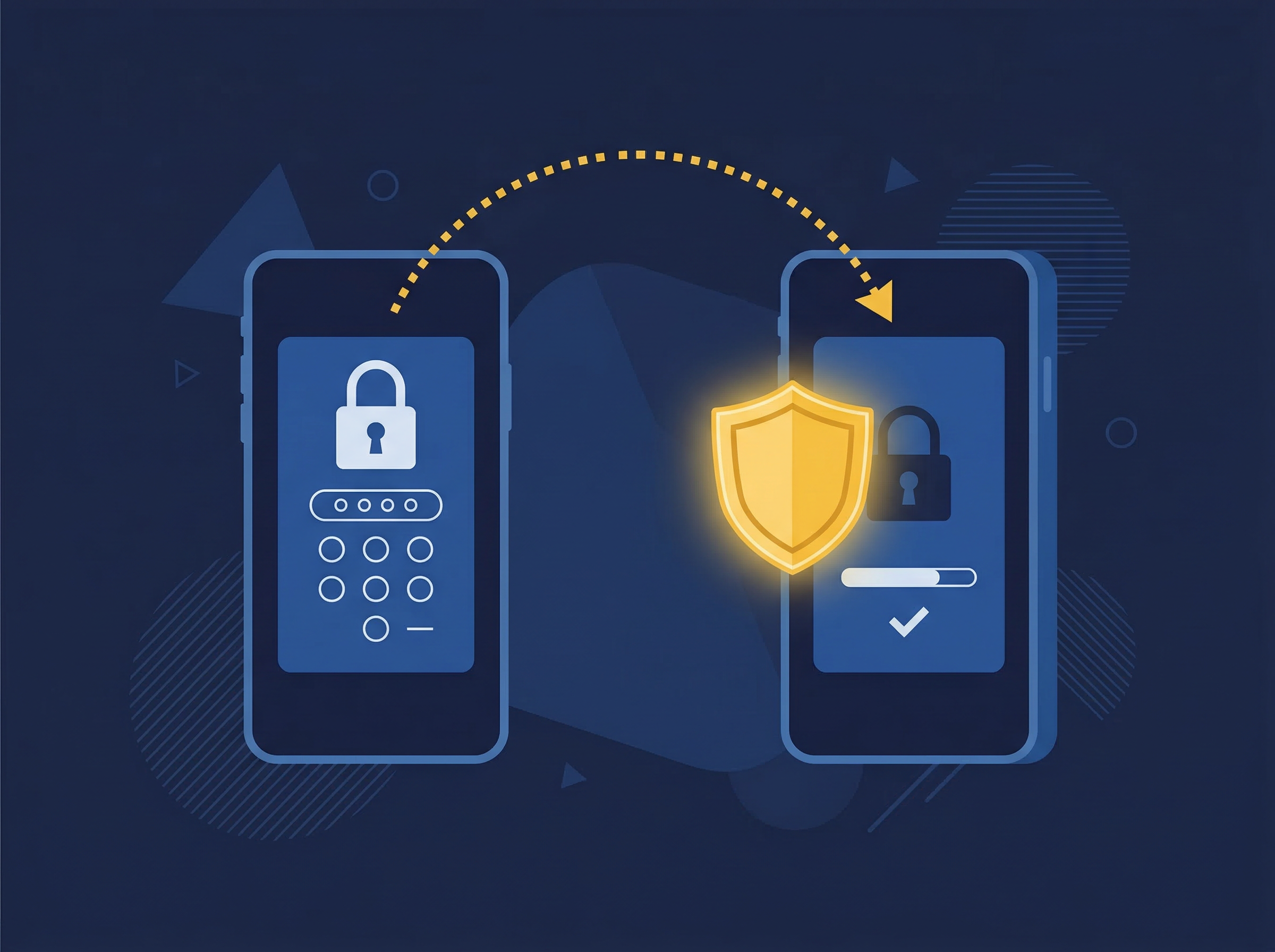
Got a new phone and worried about losing access to all your Microsoft Authenticator accounts? You're not alone. Every phone upgrade brings the same anxiety — dozens of MFA-protected accounts sitting in an app that doesn't transfer automatically. If you don't transfer Microsoft Authenticator to your new phone before wiping your old device, you could be locked out of critical work accounts, email, and cloud services. This guide walks you through the exact backup, restore, and troubleshooting steps so nothing falls through the cracks.
TL;DR: Enable cloud backup on your old phone first. Install Authenticator on your new phone, sign in with the same Microsoft account, and restore. If backup wasn't enabled, you'll need to re-register MFA for each account individually.
Microsoft Authenticator is the multi-factor authentication (MFA) app used by millions of individuals and organizations to secure access to Microsoft 365, Azure, and third-party services. Unlike some authenticator apps, Microsoft Authenticator does not allow you to export raw tokens — meaning you can't simply copy your accounts to another app or device without a proper backup.
For businesses running Microsoft 365, this creates a real operational risk. If an employee upgrades their phone without backing up Authenticator, they lose access to their work email, Teams, SharePoint, and any other MFA-protected resource. IT departments then have to manually reset MFA for each affected account — a process that can take hours depending on the number of accounts and security policies in place.
The good news: Microsoft has built cloud backup and restore directly into the app. The key is making sure it's enabled before you switch devices.
The backup process takes less than two minutes, but it must be done on your current phone while you still have access to the app.
Launch Microsoft Authenticator on your old device. Tap the three-line menu icon in the top-left corner (Android) or the gear icon (iOS), then select Settings.
Look for the Backup section. On Android, you'll see Cloud Backup. On iPhone, it's labeled iCloud Backup. Toggle the switch to On.
Once enabled, a confirmation message will appear showing the recovery email address tied to your backup. Write this down — you'll need it on your new device.
After toggling backup on, wait a moment and check that the backup status shows as complete. If you see an error, ensure you have a stable internet connection and that your Microsoft or iCloud account is properly signed in.
Having trouble with Authenticator on your current device? Our guide on fixing Microsoft Authenticator when it's not working covers the most common issues and solutions.
With your backup ready, grab your new phone and follow these steps to restore your accounts.
Download Microsoft Authenticator from the App Store (iOS) or Google Play Store (Android). Open the app and accept the privacy statement.
Instead of adding accounts manually, look for the Begin Recovery or Restore from Backup option. This appears on the initial setup screen — don't skip past it.
Sign in with the same Microsoft account (Android) or Apple ID (iPhone) that was used for the backup. You may be prompted to verify your identity via SMS or email — have your phone number ready.
After the restore completes, most accounts will appear in your Authenticator list. However, some accounts — particularly work and school accounts — may show a red exclamation mark with "Action Required."
For these accounts, you'll need to:
This re-verification step is a security measure — Microsoft's documentation confirms that work accounts require re-registration because the private keys cannot be transferred through cloud backup.
Managing MFA across your organization? See how phishing-resistant MFA takes account security even further than traditional authenticator apps.
If your old phone is gone and backup wasn't enabled, you won't be able to restore accounts through the app. Here's how to recover access:
Contact your IT administrator or Managed Service Provider. They can reset your MFA registration through the Microsoft Entra admin center (formerly Azure AD), which generates a fresh registration prompt the next time you sign in.
Each service handles MFA recovery differently. You'll typically need to:
This is why IT professionals recommend storing backup codes in a secure password manager — they're your safety net when device transfers don't go as planned.
No. Microsoft Authenticator backups are platform-specific. An iPhone backup stored in iCloud can only be restored to another iPhone. An Android backup tied to a Microsoft account can only be restored on Android. If you're switching platforms, you'll need to re-register MFA for each account individually — there's no cross-platform migration path.
No — the backup lives in the cloud (iCloud for iOS, Microsoft cloud for Android). Factory-resetting your old phone after confirming the backup completed successfully is safe. Just don't reset before you've verified the backup exists.
Work and school accounts use private cryptographic keys that are device-specific and can't be transferred through cloud backup. When you restore these accounts on a new device, you need to re-scan a QR code from your organization's security portal. This is a security feature, not a bug — it prevents someone from cloning your authenticator to an unauthorized device.
Transferring Microsoft Authenticator to a new phone is straightforward when you prepare ahead. Enable cloud backup today — even if you're not planning to switch phones yet. When the time comes, the restore process takes just a few minutes instead of hours of account recovery.
For businesses, this is a process worth documenting in your IT onboarding and device upgrade policies. A single missed backup can lock an employee out of every MFA-protected system they use.
Need help managing MFA, device policies, or Microsoft 365 security across your team? Talk to Always Beyond — we help businesses build IT systems that work, even when hardware changes.
See exactly how your current IT setup measures up to our Hack Free standards. Enter your business email to receive:
