
Shawn Freeman
Founder, CEO

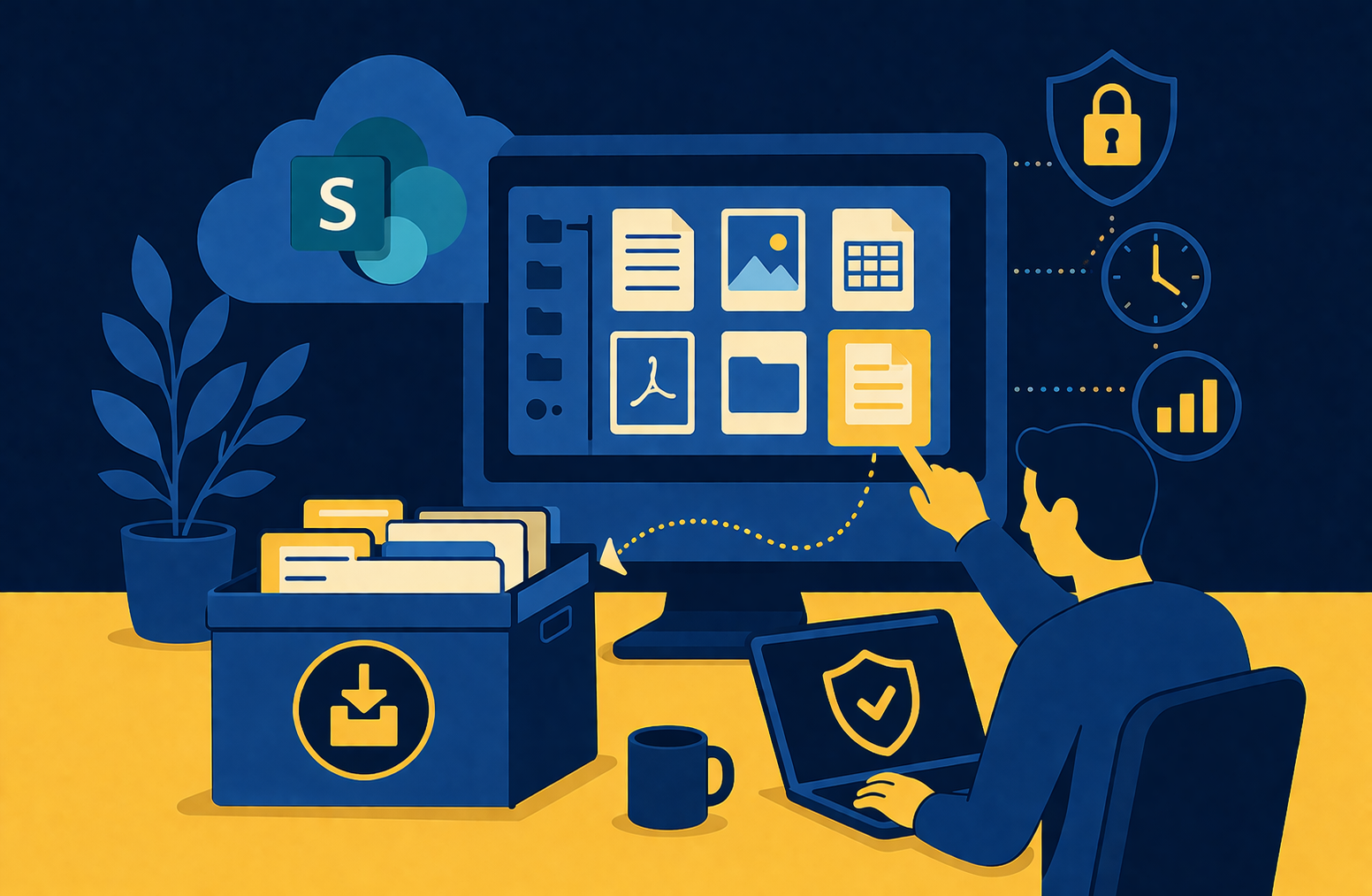
If your SharePoint environment is anything like most organizations', a significant share of what is stored there has not been touched in years. Completed project folders, old versions of templates, documents from initiatives that ended long ago, reference materials nobody opens — all of it sitting in active storage, consuming quota, showing up in search results, and influencing what Microsoft Copilot surfaces when your team asks questions.
Until recently, Microsoft 365 Archive could only solve this problem at the site level: archive an entire SharePoint site, take everything offline, or leave it all active. For sites with a mix of old and current content — which describes most real-world SharePoint environments — that was not a practical option.
That changed on March 30, 2026. Microsoft released file-level archiving for Microsoft 365 Archive in public preview. You can now archive individual files within an active SharePoint site, moving them to a cold storage tier at a fraction of the cost — while the rest of the site stays fully active. General availability is targeted for July 2026, with policy-based automatic archiving expected later in the year.
This is a meaningful improvement in how Microsoft 365 handles storage lifecycle management. Here is what it actually does, what it costs, and what your organization should be thinking about.
Microsoft 365 Archive has been available since May 2024, but it only worked at the site level — you could archive an entire SharePoint site, moving all of its content to cold storage. That made it useful for clearly concluded projects or decommissioned sites, but not for the more common scenario: a SharePoint site that is still actively used but contains a large amount of dormant historical content alongside the active files.
File-level archiving solves this. When you archive an individual file in a SharePoint document library, that file moves to a cold storage tier within Microsoft 365. The site stays active. Other documents in the same library stay accessible and editable. Users can still see the archived file in its original location — it shows up with a distinct archive icon overlay — and any user with read access can reactivate it when needed.
💡 Reactivation is straightforward — any user with read access can reactivate an archived file directly from the SharePoint web interface. After a 7-day window, reactivation can take up to 24 hours. After reactivating, there is a 30-day cooldown before the same file can be archived again.
The pricing is simple: archived storage is charged at $0.05/GB per month, compared to $0.20/GB per month for active SharePoint storage. That is a 75% reduction in cost per gigabyte. Microsoft frames this as saving up to 75% compared to purchasing additional SharePoint storage.
However, there is an important nuance that is easy to misunderstand, and getting it wrong will lead to unexpected results:
⚠️ File-level archiving does not reduce your total storage consumption — it reclassifies it. Archived files still count toward your tenant's total storage. The difference is that archived storage is billed at the lower rate instead of the active storage rate. If your SharePoint site is hitting its storage quota, archiving files will not free up site-level space. The quota relief happens at the tenant level only.
What this means in practice:
For organizations that are using — or preparing to use — Microsoft 365 Copilot, file-level archiving has a benefit that goes beyond storage billing: it improves the quality of Copilot's responses.
Microsoft 365 Copilot draws on your SharePoint content when generating responses. A SharePoint environment filled with outdated proposals, expired contracts, superseded policy documents, and legacy project files gives Copilot a noisy, low-quality pool to draw from. Copilot does not know that the 2019 version of a strategic plan is outdated — it just sees a document that looks relevant to a query about strategy.
Archived files are excluded from Copilot's active index. This means archiving old content directly improves the relevance of what Copilot surfaces — without requiring any model configuration, retraining, or Copilot-specific settings.
✅ If your Copilot responses are surfacing outdated proposals, legacy project documents, or old reference materials, archiving that content is one of the fastest ways to improve relevance. It removes the noise from Copilot's source pool without deleting anything or changing any Copilot settings.
Microsoft 365 Archive now supports two distinct archiving approaches, and they serve different use cases. Understanding when to use each one helps you build a practical archiving strategy rather than applying the same approach everywhere.
For most organizations, the practical archiving strategy will use both: site-level archiving for sites where the work is genuinely concluded, and file-level archiving for active sites carrying years of accumulated historical content.
During the public preview, there are limitations to be aware of before rolling this out:
This is the most important operational consideration before rolling out file-level archiving. Several common Microsoft 365 applications do not yet display a clear 'this file is archived' message when a user tries to open an archived file. Instead, they show generic or confusing error messages:
🚨 Before enabling file-level archiving and letting users archive content, make sure your team knows what to expect when they encounter an archived file. Users who try to open an archived document in Teams or Word Online will see an error — not a helpful 'this file is archived, click here to reactivate' message. Microsoft is working on this before GA, but during preview it requires proactive user communication.
The most common question when file-level archiving is enabled is simply: where do I start? Microsoft notes that files not accessed in more than two years have a greater than 95% probability of never being accessed again. That is a useful baseline for identifying candidates.
✅ Start with a pilot: identify one or two document libraries where the content is clearly historical, enable the feature for those sites, archive a test batch, and verify user experience before rolling out organization-wide. Always Beyond can help you identify the highest-impact sites to start with based on your SharePoint usage data.
File-level archiving in public preview is the first step in a broader storage lifecycle management capability Microsoft is building out through 2026:
The late-2026 policy-based automation is significant. Right now, archiving is either done manually by users or triggered by admins through PowerShell. Once you can define rules — archive anything in this library not opened in the past two years — the ongoing maintenance of your SharePoint storage lifecycle becomes largely automatic.
It requires Microsoft 365 Archive to be enabled, which runs on a pay-as-you-go billing model tied to an Azure subscription. You do not need any specific Microsoft 365 plan tier — the pay-as-you-go setup is what activates the capability. During the current public preview, it also requires a PowerShell command to enable for your tenant. At general availability in July 2026, it will be on by default for all tenants with Microsoft 365 Archive active.
In the SharePoint web interface, yes — archived files show a distinct archive icon overlay. However, in several other Microsoft 365 apps during the current public preview — including Word Online, Teams, and mobile apps — the experience is not smooth. Users may see generic error messages rather than a clear 'this file is archived' indicator. Microsoft is working on improving this before general availability, but if you enable the preview now, it is important to communicate clearly with your users about what to expect.
With file-level archiving, it is not admin-only. Site members and owners can archive individual files themselves, directly from the SharePoint web interface. This is one of the key design differences from site-level archiving, which is admin-only. Admins retain control over whether the feature is enabled at the tenant and site level, and can disable it per site if needed.
No. Archived files retain full coverage under Microsoft Purview — retention policies, eDiscovery, audit logging, and compliance features all continue to apply to archived content. Administrators can still find and access archived files through Purview and admin search. The archiving changes how the file is stored and billed; it does not change its compliance standing.
For most organizations, waiting for GA is the more pragmatic choice. The preview has meaningful gaps — specifically around app compatibility and the user experience when encountering archived files in Teams and Word Online. If your IT team wants to get ahead of the configuration and test archiving behavior in a pilot site, the preview is available and usable. But broad user-facing rollout before July 2026 requires careful communication planning to manage the error message experience. Always Beyond can help you assess readiness and plan the rollout.
File-level archiving closes a gap that has existed in Microsoft 365 storage management since the beginning. Until now, the choice was binary: keep everything active, or archive an entire site. For organizations with complex, long-lived SharePoint environments — which is most organizations that have been on Microsoft 365 for more than a few years — neither option served the real need.
The ability to archive individual files at a 75% cost reduction, while keeping the site active and improving Copilot relevance in the process, is a meaningful step forward. The storage cost savings are real but secondary. The Copilot quality improvement, the cleaner search results, and the foundation for policy-based lifecycle management later this year are the more significant longer-term benefits.
General availability arrives in July 2026. Now is a good time to assess your SharePoint environment, identify the highest-value archiving opportunities, and make sure your billing and infrastructure prerequisites are in place before the feature enables by default.
Want to know what file-level archiving could mean for your SharePoint environment? Always Beyond can assess your current SharePoint storage usage, identify the highest-value archiving opportunities, and set up Microsoft 365 Archive for your tenant — including the pay-as-you-go billing configuration and initial pilot rollout. Reach out to start the conversation.
See exactly how your current IT setup measures up to our Hack Free standards. Enter your business email to receive:
