
Shawn Freeman
CEO

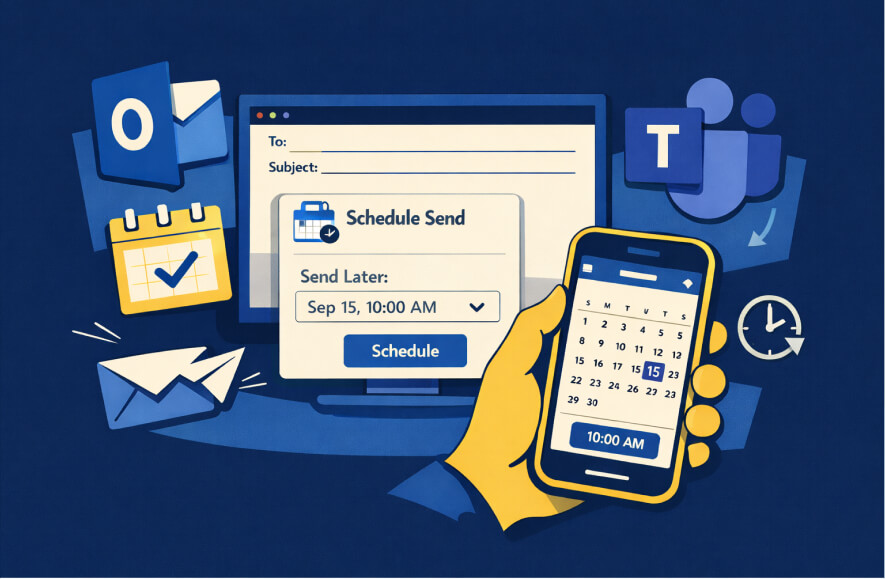
In today’s always-connected workplace, messages often arrive at all hours — even when no one expects a reply right away. Whether it’s a late-night email from a manager or a weekend Teams message from a coworker, these pings can cause stress, distraction, and pressure to be “always on.”
Microsoft’s Schedule Send feature in both Outlook and Teams solves this problem in a simple but powerful way. It lets you write messages when it works best for you and schedule them to send later, when it works best for the recipient.
This article explains how Schedule Send works, why it matters for your business, and how to start using it effectively as a team.
Schedule Send is a built-in feature in Microsoft Outlook and Teams that allows you to choose a future date and time for your message to be delivered. You can still draft your emails and chats whenever you have time, but instead of sending them immediately, you set them to arrive when your recipient is actually working.
The result is a more respectful communication flow with fewer off-hours interruptions and clearer boundaries for everyone.
Using Schedule Send helps your team avoid burnout and maintain better boundaries without sacrificing productivity. Even messages that say “no rush to reply” can cause employees to feel pressure when they arrive outside working hours.
This feature supports:
• Work-life balance
• Focus time without distractions
• Healthier communication norms
• Better collaboration across different time zones
Encouraging thoughtful messaging can improve team morale and reduce after-hours stress while still getting things done.
To schedule a message in Outlook:
1. Compose your email as usual.
2. Click the arrow next to the Send button.
3. Select “Send later.”
4. Choose the time and date you want the email to be sent.
Outlook will handle the rest. You can edit or cancel your scheduled message anytime before it sends.
To schedule a Teams message:
1. Type your message in a chat or group conversation.
2. Instead of sending it right away, right-click or press and hold the Send button.
3. Choose “Schedule send.”
4. Pick your desired time and date and confirm.
This is especially helpful if you’re working flexible hours or collaborating across time zones.
Schedule Send is most effective when your whole team uses it consistently. Start by letting your team know this feature exists and explain why it helps.
Encourage managers to model this behavior. If leadership schedules their after-hours messages, it sets a strong example. You can also include this tip in onboarding materials or digital communication policies.
The goal is not to delay productivity, but to send the right messages at the right time — so your team stays focused and avoids unnecessary interruptions.
Here’s how small and midsize businesses are already benefiting from Schedule Send:
• A manager drafts project updates after hours but schedules them for the next morning
• A team member working from another time zone sends a message to align with head office hours
• A staff member prepares client updates on a Sunday evening and schedules them for Monday morning
• An employee avoids distracting teammates during deep focus time by delaying delivery
• A project lead schedules reminders and check-ins in advance for consistent follow-up
The flexibility gives your team more control over how they work, without sacrificing courtesy or collaboration.
Already using Copilot in Microsoft 365? You can pair Schedule Send with Scheduled Prompts in Copilot for even more automation and time savings.
For example, have Copilot generate a weekly project summary every Friday afternoon and then schedule it to send to your team Monday morning. You stay ahead without disrupting anyone’s weekend.
To learn more, check out our guide: How to Use Microsoft Copilot to Save Time and Boost Productivity
At Always Beyond, we help small and midsize businesses make the most of Microsoft 365. That means smarter communication tools, time-saving features, and better collaboration.
Whether you want to roll out Schedule Send across your team or learn how to combine it with other tools like Copilot, we’re here to help.
Contact us today to get started.
See exactly how your current IT setup measures up to our Hack Free standards. Enter your business email to receive:
