
Shawn Freeman
Founder, CEO

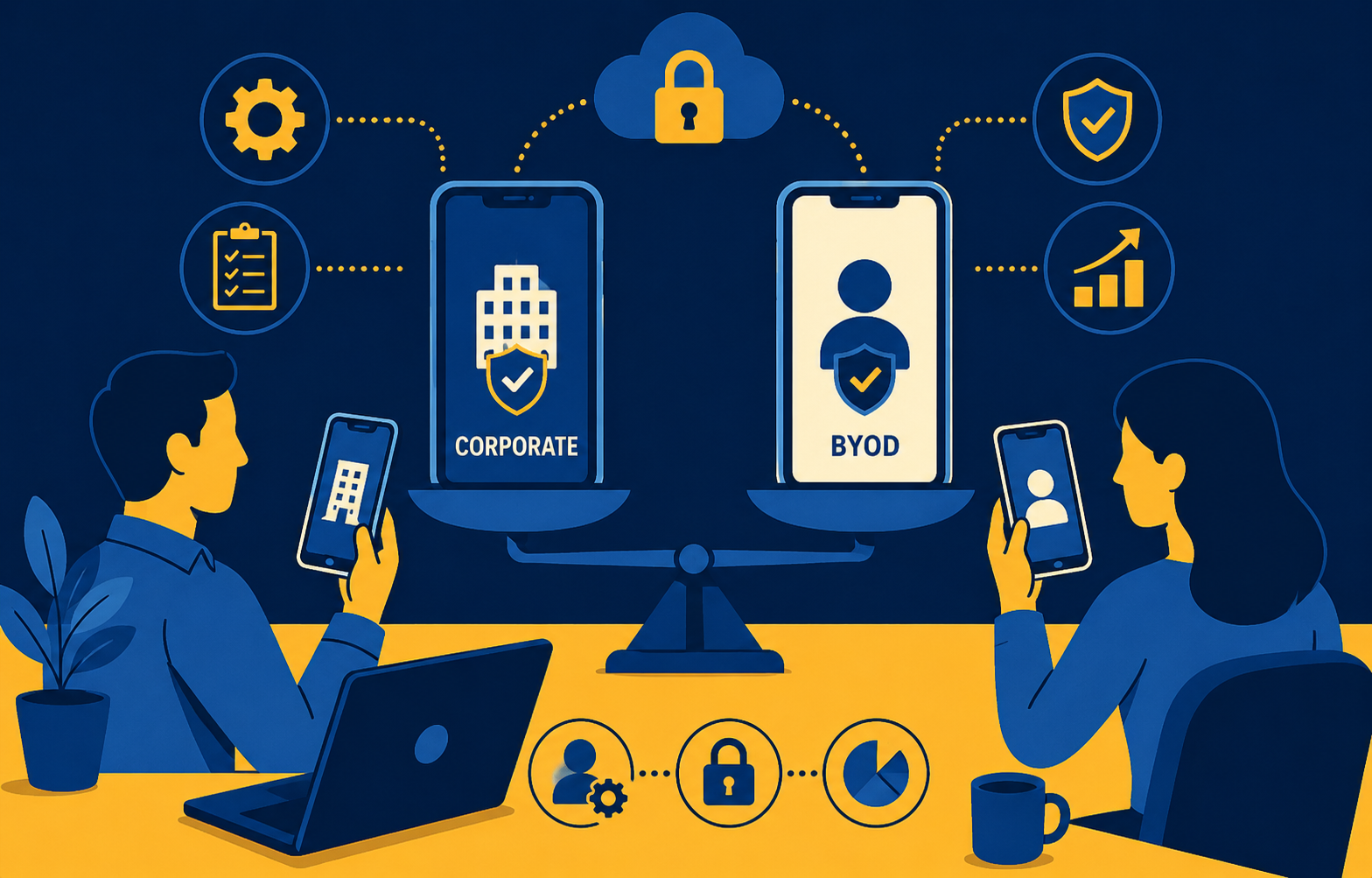
Picture the scene every Canadian office manager knows. An employee leaves. They had a company iPhone. The carrier wants to confirm the SIM transfer, the previous person's voicemail still answers business calls, the device hasn't been wiped, and nobody can find the original IMEI on the asset list. Meanwhile someone else just got promoted and needs a phone today.
Multiply that by the number of staff who have business-issued phones, add the carrier admin time, the device refresh cycle, the lost handsets, the personal use grey areas, and the small but real possibility that your IT person knows everyone's voicemail PIN. It is rarely worth it.
There is a much cleaner answer. Pay people a fixed monthly amount toward their personal phone, and use Microsoft 365 to control your data inside their phone — not the device itself. This post walks through why that combination works for most Calgary and Canadian SMBs, what it costs, and the specific Conditional Access and app protection settings that make BYOD safe enough to actually use.
Sources: Verizon 2025 Data Breach Investigations Report; Compt 2025 Lifestyle Benefits Benchmarking Study; Oxford Economics / Samsung Maximizing Mobile Value study.
Most owners think of a company phone as the cost of the device plus the monthly plan. The Compt 2025 benchmarking data shows the actual figure is roughly three times that once everything is added in: hardware (~$652 per employee), the business plan (~$504 per year), MDM software (~$60 per year), and IT support and admin overhead (~$458 per year). All-in, that is around $1,674 per employee per year for a single corporate-liable line.
And that is before the operational tax that nobody puts on a spreadsheet. Someone has to:
⚠️ If someone in your company already "handles the cell phones," calculate how many hours a month they spend on it. For most SMBs we work with at Always Beyond, the answer is between four and ten hours every month — time that does not contribute to the business in any way.
The argument for absorbing all of this used to be control: the company owns the line, the company controls the device, the company can wipe it. That argument is now weaker than it sounds. As we will get to in a moment, you can get all of the data control you actually need without owning the device at all.
The simpler model is to pay a fixed monthly amount toward the employee's personal phone plan and let them use whatever device and carrier they prefer. The Oxford Economics/Samsung study found 98 percent of organizations with a BYOD policy provide a full or partial stipend, with most paying between $30 and $50 per month.
The numbers favour this approach almost regardless of how you cut them:
Figures are approximate and drawn from the Compt 2025 benchmarking study and Oxford Economics survey data. Actual numbers vary by employer size, carrier negotiation leverage, and stipend amount.
Most people would rather carry one device than two. They get to choose their handset, keep their phone number across jobs, upgrade on their own schedule, and stop juggling two chargers. As long as the stipend is fair and the security model does not feel invasive, BYOD is genuinely the more popular option.
✅ Pick a stipend that lands at or slightly above the median Canadian unlimited plan. $50 to $75 per month covers virtually every staff member, removes the "is this enough?" friction, and is still cheaper than any company-paid alternative once admin time is counted.
BYOD is not for everyone. There are roles where a company-owned device is genuinely the right call:
For most office staff in a typical Calgary SMB, none of these apply. The stipend model wins on cost, simplicity, and employee experience.
There is one scenario that does not fit neatly into either bucket: when the company wants to own the phone number — typically because it is published on a website, business card, CRM record, or in a customer's address book — but does not particularly want to own the hardware or manage another device. A salesperson's direct line, a dispatcher's number, or a leadership member's published mobile are all examples. If that person leaves, you want the number to stay with the role, not walk out the door.
The clean solution is an eSIM provisioned on the employee's personal phone. Modern iPhones and most current Android devices support dual-SIM via eSIM, which means a single device can carry both a personal line and a separate company-owned line side by side, with their own numbers, their own bills, and their own usage. The company pays the carrier directly for the corporate eSIM line. The employee runs their personal line however they like.
💡 The cleanest setup at most Canadian carriers is a separate business account in the company's name with the eSIM line provisioned to the employee's device. When the employee leaves, the carrier deactivates that eSIM and ports the number to whoever takes over the role — usually the same day. The personal half of the phone is never touched.
It captures every benefit of corporate-owned numbers without most of the cost or admin:
⚠️ A few practical notes. The phone must support eSIM — most iPhones from XS onward and most flagship Android devices from the last few years do, but older or budget Android handsets often do not. The employee also needs to be willing to add a corporate line to their personal device, which is a different conversation than installing work apps. Always Beyond can scope which roles are good candidates and handle the carrier coordination.
Whenever we propose moving a client to a stipend model, the next question is always the same: isn't BYOD a security nightmare? It can be — but probably not for the reasons people think.
The Verizon 2025 Data Breach Investigations Report flagged BYOD as a major exposure point: 46 percent of devices found in infostealer logs with corporate credentials were unmanaged personal devices. That number is striking, but the underlying problem is not really "the phone" — it is that work data was on a phone where the organization had no controls of any kind.
The real-world BYOD incidents we see at Always Beyond fall into four buckets:
🚨 The single largest BYOD risk for Canadian SMBs is not malware on the phone. It is corporate data being copied out of work apps into personal apps, personal cloud storage, or screenshots — quietly, by good people doing their job. PIPEDA and Quebec's Law 25 hold the organization accountable for that data wherever it ends up.
There are two ways to control a phone with Microsoft 365. Most owners only know about the heavy one, which is part of why BYOD feels riskier than it actually is.
Mobile Device Management (MDM) takes control of the entire device. The company can require a passcode, disable the camera, force encryption, and remotely wipe everything. It is the right tool for company-owned phones. It is the wrong tool for BYOD — most employees will not let you fully manage their personal phone, and frankly they should not have to.
Mobile Application Management (MAM), implemented through Intune App Protection Policies, takes a different approach. It does not touch the device. It controls the work apps — Outlook, Teams, OneDrive, Word, Excel, Edge — and the data inside them. The personal half of the phone is untouched.
💡 The MAM model is the answer to the privacy objection most employees have about BYOD. You are not watching what they do on their phone. You are not seeing their photos, their browsing, or their personal apps. You are putting a locked container around the work data — and only the work data.
MAM on its own is not enough. If an employee can sign into Outlook in a web browser, or use the iPhone built-in Mail app instead of Outlook, the protection is bypassed. This is where Conditional Access does the heavy lifting.
Conditional Access is a Microsoft Entra (formerly Azure AD) feature that evaluates every sign-in against a set of rules and decides whether to allow it, block it, or require something more — such as multi-factor authentication or a managed app. For BYOD mobile, the rule that matters is this: if you are signing in from a phone, you must be using an Intune-protected app.
📋 The current best-practice grant control is "Require app protection policy." Microsoft has confirmed that the older "Require approved client app" control retires in early March 2026 and should not be used in new policies. "Require app protection policy" is the modern equivalent and is what Always Beyond deploys today.
Once configured, the experience for an employee is straightforward. The first time they try to access work email or files on their personal phone:
When the policy is in place, the phone behaves like this:
When we onboard a client to this model, the configuration we deploy as a default is built around Microsoft's Level 2 ("Enterprise Enhanced") data protection framework, which is the recommendation Microsoft itself makes for most organizations. The settings cluster into three buckets:
✅ The selective wipe is the offboarding feature that makes the entire model worth doing. Within 60 seconds of the offboarding ticket, the departing employee's Outlook, Teams, OneDrive, and Office app data — every email, file, and cached document — is gone from their phone. Their personal photos, contacts, and apps are exactly where they left them.
Even with strong app protection, the phone screen is still a phishing surface, and a particularly effective one. SMS messages do not look or feel like email. There is no obvious "From" header. URLs are usually shortened. There is no security training poster taped to the phone case.
Smishing (SMS phishing) campaigns aimed at Canadian businesses typically follow predictable patterns:
⚠️ Report fraudulent texts to the Canadian Anti-Fraud Centre (CAFC) and forward suspicious SMS to 7726 (SPAM) — most Canadian carriers honour this and use it for network-level blocking. Always Beyond can build phishing-aware reflexes into your team's training cadence so these messages get reported, not clicked.
For most Canadian SMBs, the answer is rarely "all corporate phones" or "BYOD with no controls." It is a clear, tiered model:
💡 The end state is unglamorous but powerful: a leaner mobility line item on the budget, a quiet inbox for whoever "handles the phones," stronger data protection than most enterprises had five years ago, and an offboarding process that takes less than a minute. None of this requires you to know what "Conditional Access" means — but your IT partner should.
Yes, with a clear written BYOD policy. PIPEDA and Quebec's Law 25 require organizations to protect personal information they hold, regardless of where it sits — which means you are legally on the hook for work data on personal phones whether you have controls or not. The policy simply needs to spell out what the company sees (only work data inside work apps), what it does not see (everything else), and what happens at offboarding (selective wipe of work data only). Always Beyond provides this policy template as part of our mobile rollout.
The Microsoft Outlook app, the Microsoft Authenticator app (on iOS), or the Intune Company Portal app (on Android, used for sign-in only — not full enrollment), and any other Microsoft work apps they use such as Teams, OneDrive, Word, or Excel. They are all free, all from the official app stores, and the install takes a few minutes. The Authenticator and Company Portal apps do not give the company any visibility into the personal phone.
You can wipe the work data — instantly. The personal data on the device is the employee's responsibility (their iCloud/Google backup, Find My iPhone, etc.). For lost-device scenarios this is actually a feature, not a limitation: the employee deals with their personal account and you deal with your corporate data, and neither side is touching the other.
Canada Revenue Agency generally treats a reasonable mobile stipend as a non-taxable allowance when the phone is genuinely required for work and the amount is consistent with actual costs. We recommend confirming the structure with your accountant — most clients we work with treat it as a non-taxable benefit at $50-$75 per month, but the right structure depends on your payroll setup. Always Beyond can connect you with our partner accounting firms if you do not already have advice on this.
This is rare but happens. The clean answer in your BYOD policy is that mobile access to corporate email and files is a privilege that requires the security controls — not a right. Employees who decline the controls do not access work data on their phone, and instead use a desktop or laptop. For roles where mobile access is essential (sales, leadership, on-call IT), provide a company-owned phone with full MDM. Most employees, once they understand the controls only touch work apps, opt into the BYOD model without issue.
The architecture is similar but the tooling is different. Google offers app management and context-aware access, which provides equivalent (though not identical) controls. Most of our Calgary SMB clients run Microsoft 365, which is why this post focuses on Intune and Conditional Access. If you are on Google Workspace, reach out and we will walk through the equivalent controls.
Generally no, when the corporate line is genuinely required for work and is used primarily for business calls and texts. The CRA's framework for employer-provided phone service is the same whether the line lives on a company-owned device or as an eSIM on a personal device — what matters is the business purpose, not the SIM. As with the stipend question, confirm with your accountant; the structure is straightforward but the right tax treatment depends on your overall payroll setup.
Ready to get out of the carrier business and put real controls on BYOD? Always Beyond scopes and deploys the entire mobile model — stipend policy, Microsoft Entra Conditional Access, Intune app protection, BYOD policy template, and end-user rollout — as a single project. Reach out to start the conversation.
See exactly how your current IT setup measures up to our Hack Free standards. Enter your business email to receive:
